Introduction
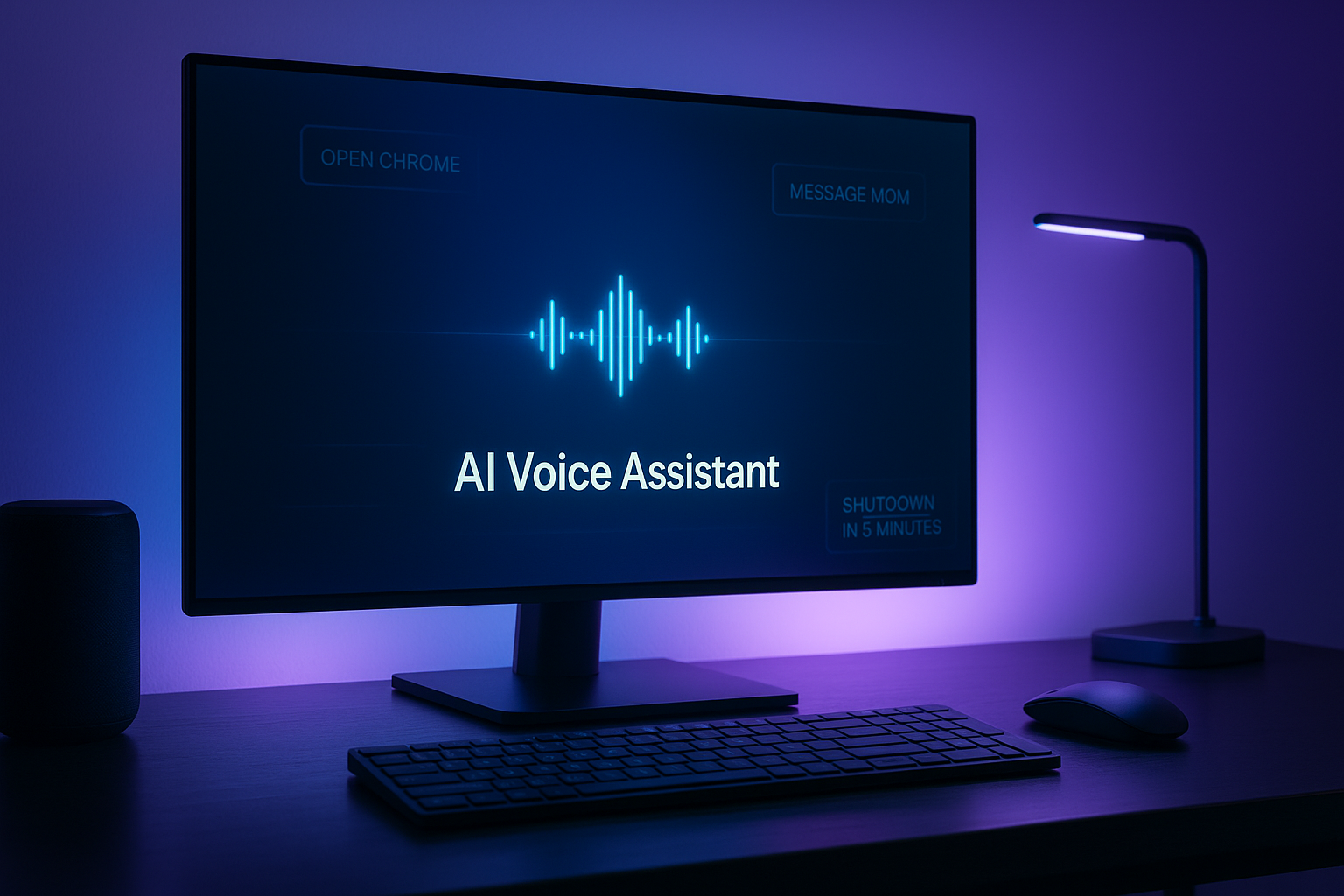
Let’s talk casually about an exciting new arrival in the world of productivity: the desktop voice assistant, or more precisely the AI desktop voice assistant, called Pika AI . This one is best if you were searching for Google Assistant for PC or Google assistant desktop or similar keywords cause this post have the perfect app that you was looking. If you’ve been dreaming of a “desktop voice assistant download” that just works and frees you from lots of clicking, typing and switching windows — this could be it.
What is Pika AI – the Desktop Voice Assistant
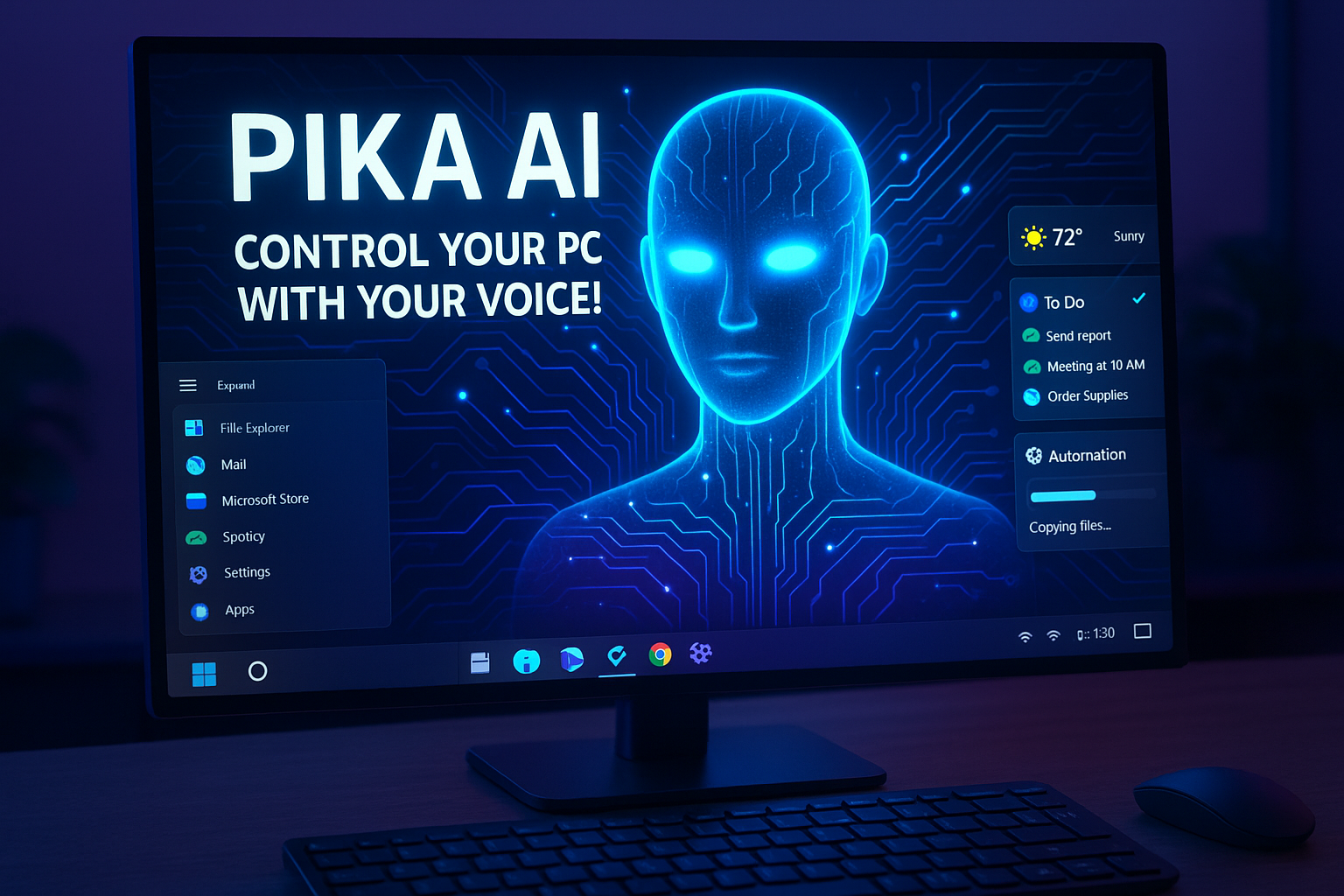
So, in simple words: Pika AI is an AI voice assistant built specifically for desktops (Windows/macOS) so you can say “Hey Pika” and it’ll listen, do things, launch apps, control websites — basically, that dream of “Hey Computer, do this” becomes real. On the official site it calls itself a “voice-activated smart assistant software that controls your digital world, hands-free.”
When we talk about “desktop voice assistant” or “AI voice assistant” or “AI voice assistant for PC” we’re referring to tools like this — but Pika stands out because it’s built for the PC desktop environment (not just mobile), and has rich automation features. And yes, if you search for “desktop voice assistant download”, you’ll find Pika’s download link on that site.
Why this matters — more than just “another voice assistant”
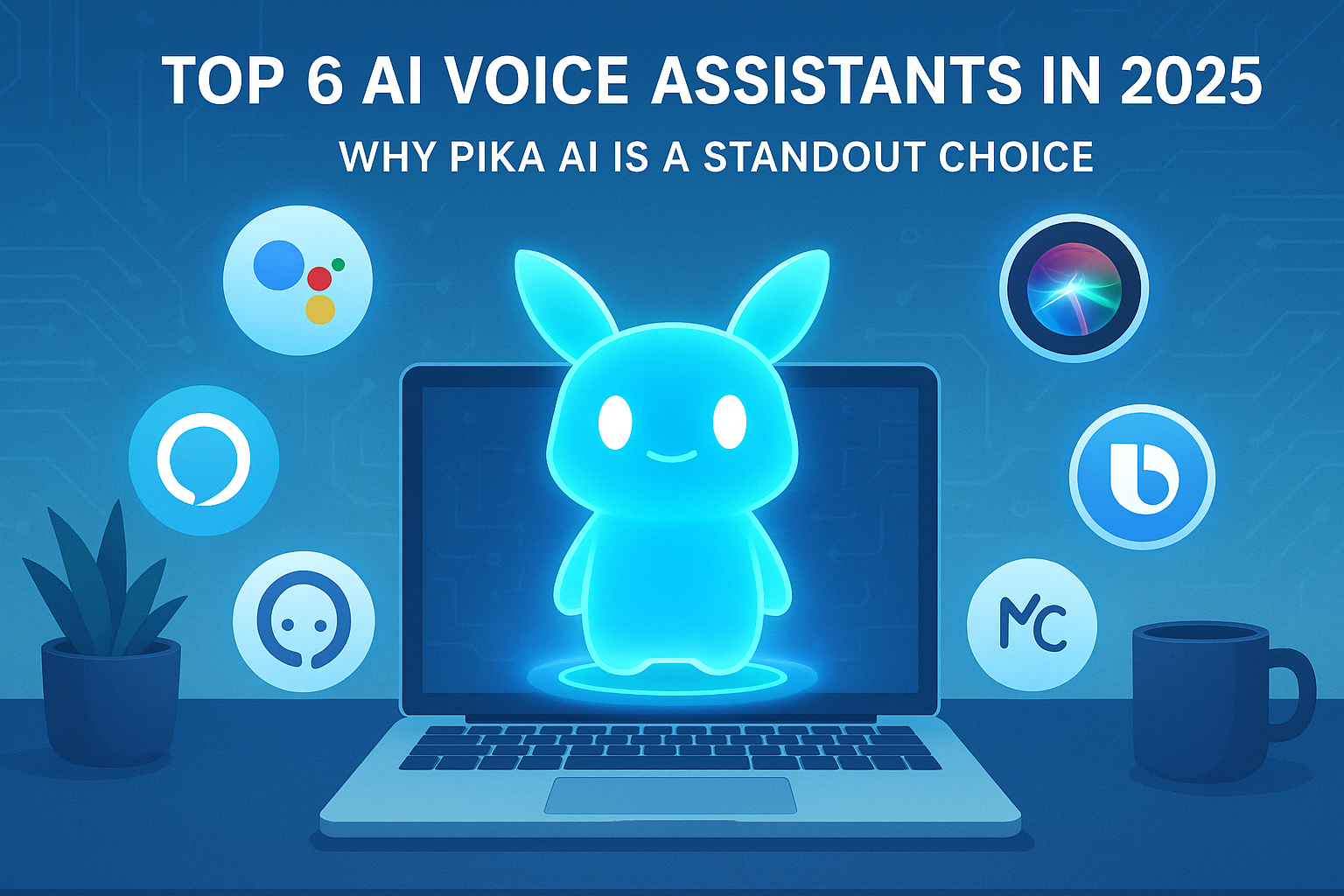
You may have used for example mobile voice assistants (hey Siri, Google Assistant) or maybe simple PC tools. But desktop-specific voice assistants often feel like afterthoughts. Pika changes that: it was built from the ground up to handle desktop workflows, app launching, media control, reminders, web automation, and more. According to its About page, it’s “A revolutionary Python-based AI virtual assistant integrating Google Gemini API for smart responses… voice/text control… personalized desktop productivity experience.”
So if you’ve ever thought: “I wish I could just tell my PC to open Slack, send an email, play a video, then set a reminder” — this is exactly the kind of “desktop voice assistant” to try.
Key Features of Pika AI (your new AI voice assistant for PC)
Let’s dive into what it can do. These are the features that make it shine when we say “desktop voice assistant” in full meaning.
🗣 Voice Activation & Hands-Free Control
Say “Hey Pika” (or similar) and the assistant wakes up – no need to click menus.
It listens to your voice commands to control apps, websites, media.
Also supports text commands if you prefer typing instead of voice. According to the About page: “Voice & Text Commands — Seamless operation through both voice recognition and text interfaces.”
⚡ App & Website Launching with Voice
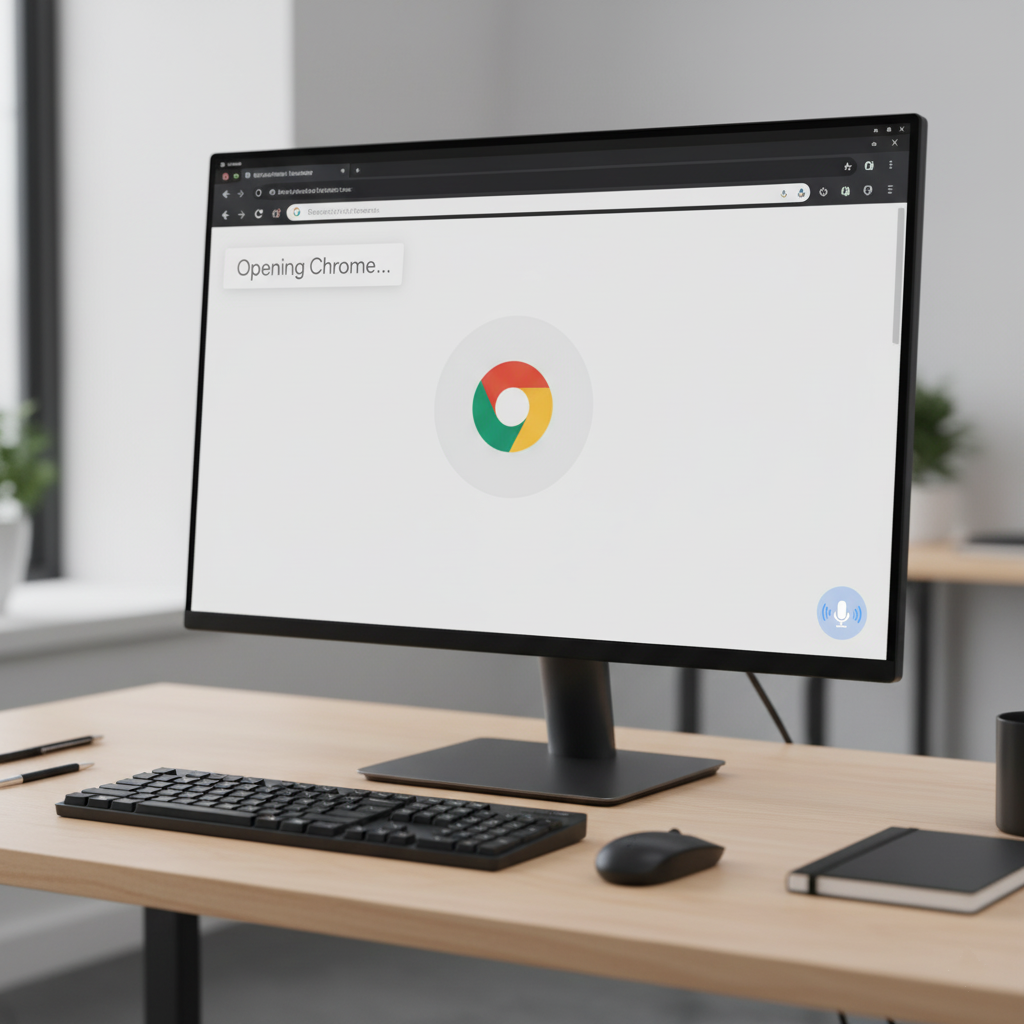
You can open any application or website just by speaking its name: like “Open Chrome”, “Open Facebook”, etc.
Manage system commands: close windows, shutdown computer, etc. For example: “Close current window”, “Shutdown computer”.
💬 Smart Communication Assistant
Handle communication tasks via voice: send messages, manage emails. On the website: “Send messages, manage emails, and handle communications using voice commands.”
Perfect for multitasking: while you’re working you can dictate rather than switch over to the mail app.
🎯 Productivity & Focus Mode
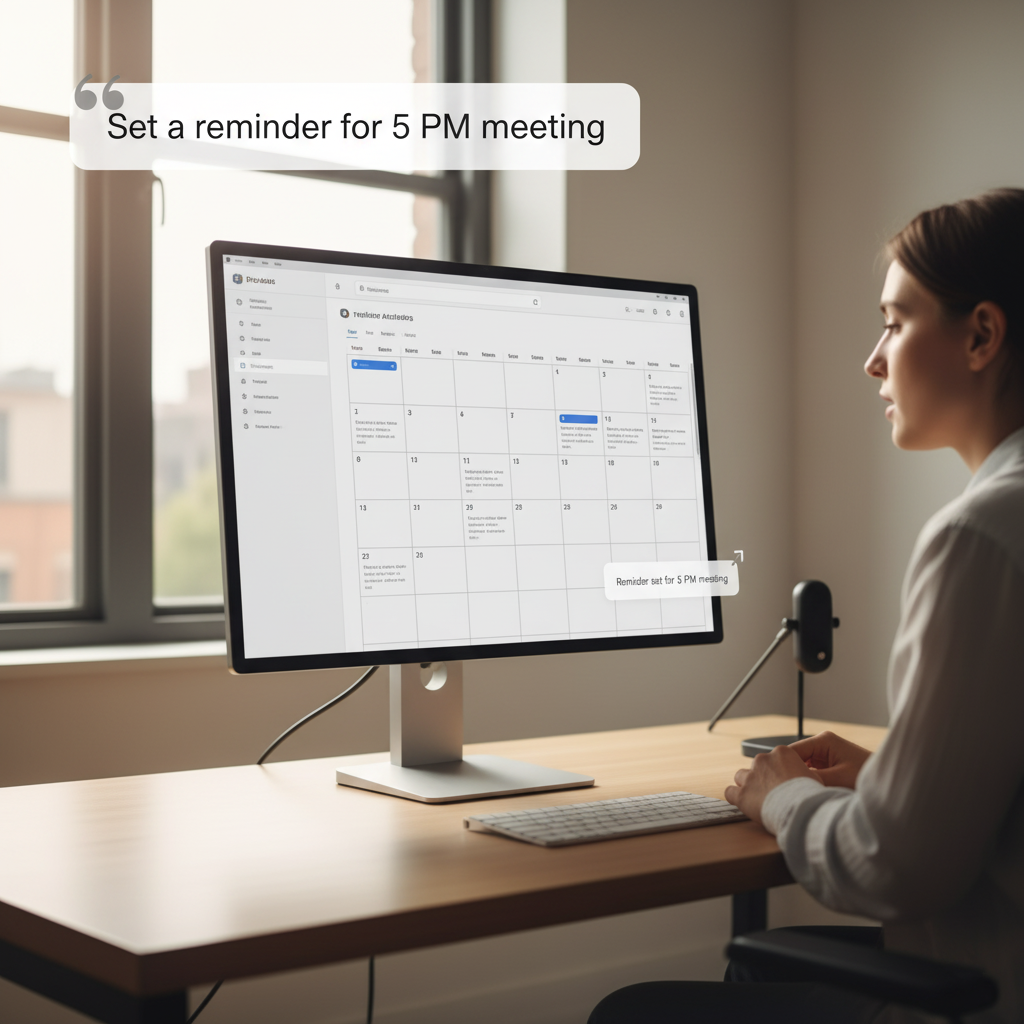
“Focus Mode & Productivity Booster” – block distracting apps, websites, set reminders, tasks.
Set timers, reminders via voice: “Set 25-minute timer”, “Create reminder”, etc. From About page sample commands.
Launching, closing apps, web automation: all help reduce those “I must click 10 times to get this done” moments.
🎬 Universal Media Control
Control streaming platforms like YouTube, Netflix just by voice: pause, play, skip. Website lists “control YouTube, Netflix, and other streaming platforms with voice commands”.
Instant entertainment assistant: “play my favourite movie”, “open the next episode” etc.
🧠 Multiple Custom Command
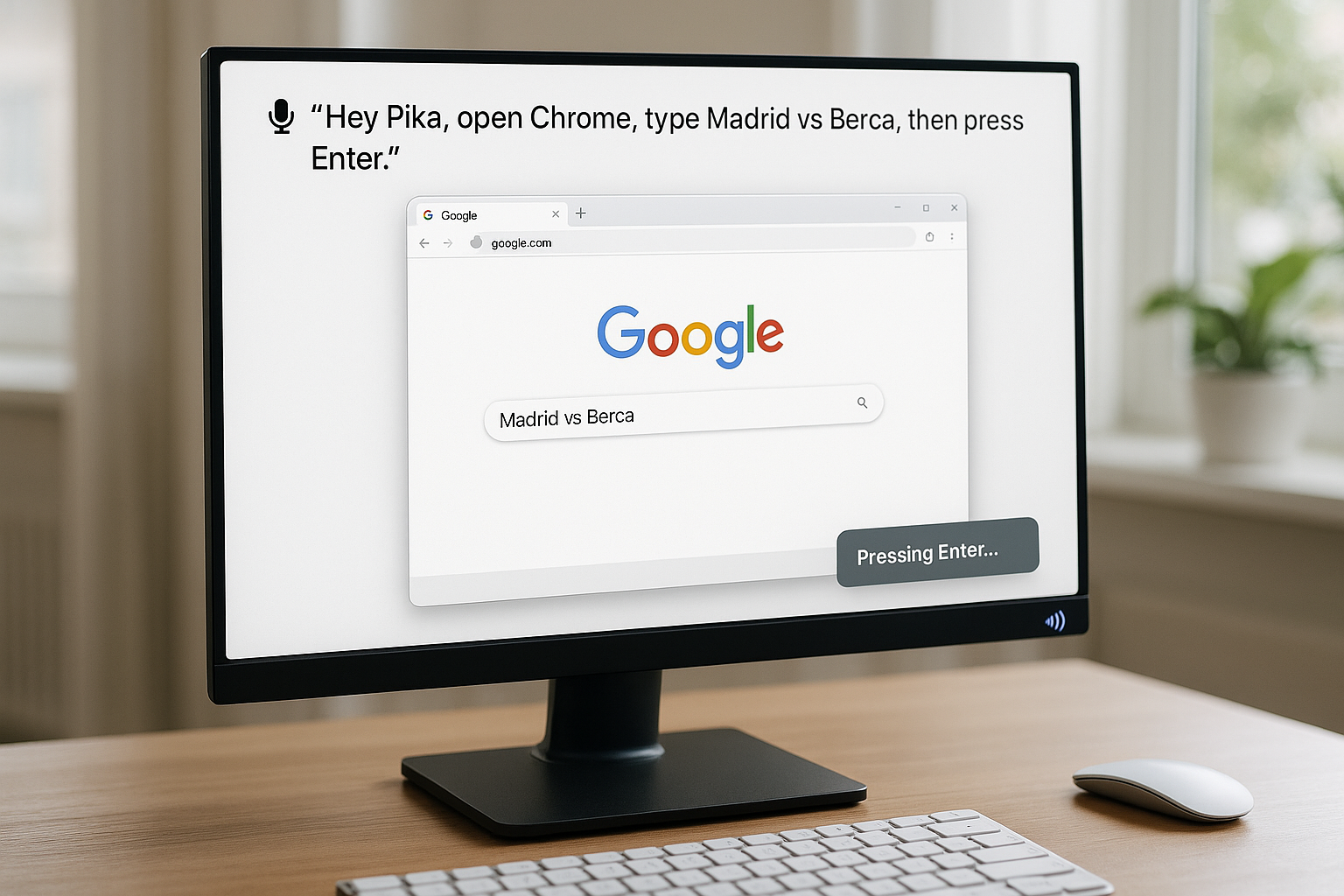
Ask it to do any kind of desktop automation task which is possible with keyboard and mouse, it will do all of them and you just have to break the task. If you say it to open chrome then type this then do this then again repeat this for 5 times.... Blah blah blah.. it can do all of them ! After all it is the ultimate desktop voice assistant”
⚙️ Smart System Control
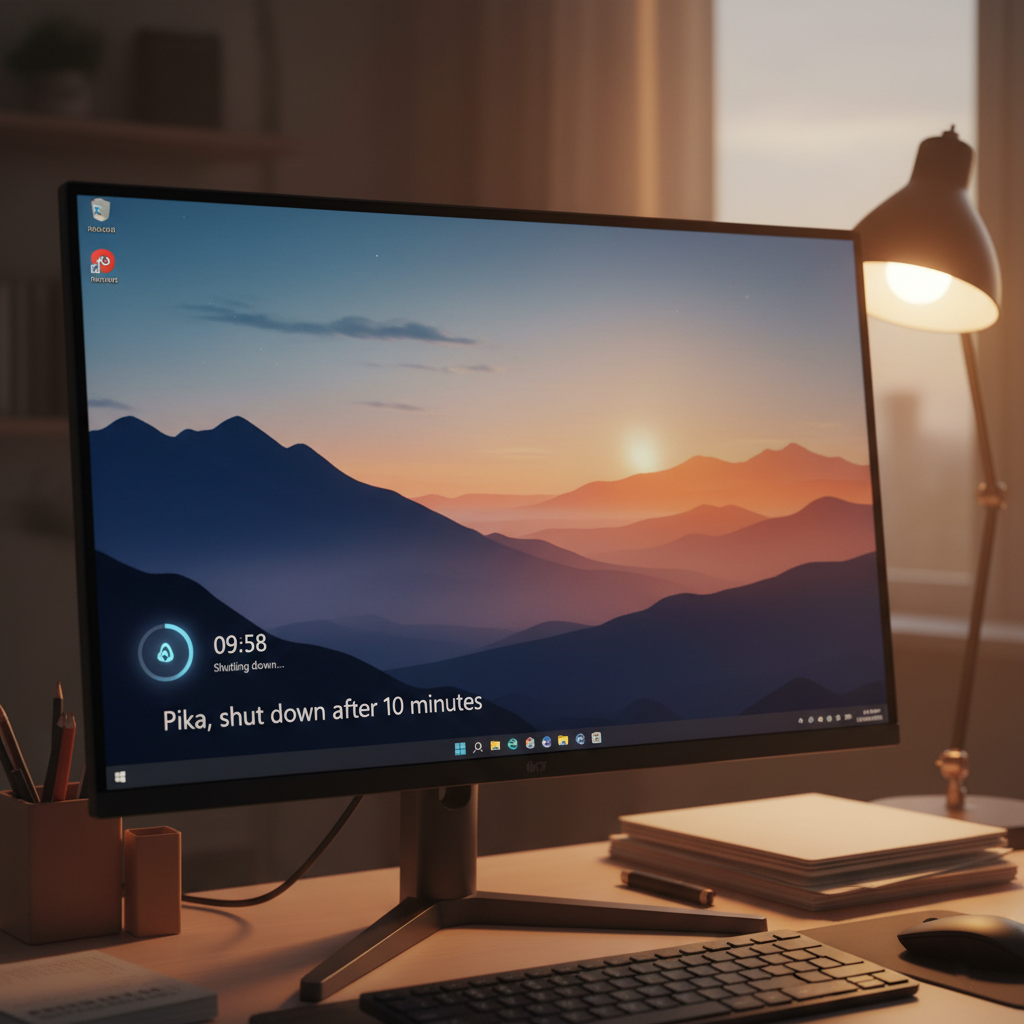
This AI can perform system commands like sleep, shutdown, or restart with simple voice instructions. Just use your wake word and say what you need, and it will handle it instantly.
You can even set timers — for example, say “Shut down the PC after 10 minutes,” and it will automatically execute the command. It’s a hands-free, easy, and reliable way to control your computer.
🧩 Advanced Multitasking
This AI can handle multiple tasks in a single command, making your workflow seamless and efficient. You can say something like “Open Chrome, message Mom that I’ll be late, then shut down the PC after 5 minutes,” and it will complete each step in order without you lifting a finger.
It’s designed for smart multitaskingg combining apps, messages, and system controls effortlessly so you can focus on what really matters.

🧠 Intelligent AI Responses
Ask it general questions (“What’s the weather?”, “Who invented …”), calculations, knowledge-based queries. The website: “Ask Pika AI anything — from complex calculations to general knowledge — and get instant, accurate answers.”
Because it integrates with Google Gemini API (as described in About section) it has smart responses.
🔐 Privacy & Customization
According to its privacy policy: data is stored locally by default, encrypted, and shared only with explicit consent.
You can login via Google OAuth2 for personalization. From About: “Secure Google Login … personalized experience.”
Over time it learns your preferences, voice patterns, tasks you do. So your “AI desktop voice assistant” experience becomes more tailored. (Mentioned in blog review)
How to Get Started – Desktop Voice Assistant Download & Setup
If you’re excited and want to try this desktop voice assistant / AI voice assistant, here’s how:
- Go to our home page.
- Download the application for your OS (Windows/macOS) – look for the “Download Pika AI Free” button.
- Install it. During install you might login via Google OAuth. This enables personalization and syncing.
- Once launched, you can say “Hey Pika” (or click the wake command) and start giving voice commands.
- Explore sample commands: open/close apps, play/pause media, set reminders, search web, etc. From About page sample commands.
- Customize: set your wake-word, adjust voice recognition settings, set which apps/media you use often.
- Let it learn: as you use it more, your voice assistant becomes smarter and more aligned with your desktop workflow.
Why You Might Choose Pika AI as Your Desktop Voice Assistant
Because it’s built for desktop, unlike many assistants built primarily for mobile.
It gives you a hands-free workflow: you can talk instead of clicking and switching windows all day.
It handles both productivity and entertainment: from schedule to Netflix, all in voice.
Strong privacy policy and local data storage option give peace of mind.
Startup is simple — download and go; you don’t need extensive technical knowledge.
It’s fun. Seriously, it feels futuristic to tell your PC what to do and have it listen — an AI desktop voice assistant that actually works.
A Few Tips & Considerations
Wake-Word choice: If “Hey Pika” conflicts with other software or background noise, set a custom wake-word to reduce false triggers.
Accuracy: For best voice recognition, use a decent microphone and quiet environment.
Task design: Start with simple commands (open browser, play music) then gradually explore more complex workflows (reminders, automation) so you’re comfortable.
Integration: See which apps/websites you use often and check if Pika supports them. You might set up custom commands for your favorite tools.
Privacy: Although data is stored locally by default, check settings for cloud sync or voice input processing to understand what’s being sent externally.
Learning curve: It may take a short period before voice assistant commands become second nature. But once it is, the flow of desktop control gets smooth.
Final Thoughts
If you’ve been actively looking for a real desktop voice assistant download or an AI desktop voice assistant that is more than half-baked, the arrival of Pika AI is pretty exciting. It brings together voice activation, system/app control, media commands, automation, productivity focus, and smart AI responses into one friendly package. From now on skip searching google desktop assistant or google assistant for pc instead search Pika Voice Assistant or Pika Voice !
In short, this desktop voice assistant (or AI voice assistant) bridges that gap: we all wondered if there was one, and now, it’s here. Better than what we had before for desktops, because it’s built for desktop only and automates more tasks than many mobile-centric assistants.